This article is basically a clone of
but I tried to add a missing pieces of code. It was a hell for me to gettting through this article as it is missing a lot.
So I have used
http://msdn.microsoft.com/en-us/library/fp179925(v=office.15).aspx
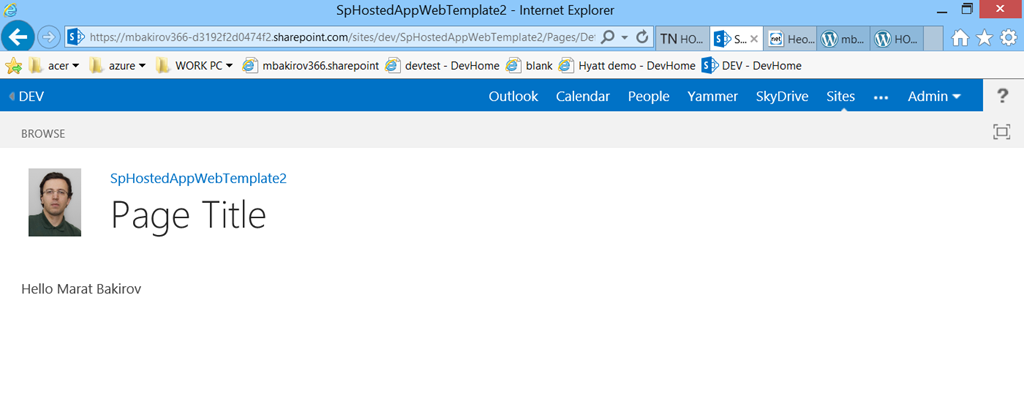
Originally I had a question – how could you change the logo that happens on all app pages if you are using a default master page?
So/ let us go and make a fixed version of the article. I will try to follow the original numeraton,is possible.
I assume that you have a SharePoint hosted app already. I will go through the steps from technet article and will add missing pieces of code and screenshots.
So I have a SharePoint hosted app and a picture like this to be on the place of the logo.

here is an url
(and yes, http://en.wikipedia.org/wiki/Narcissism, http://en.wikipedia.org/wiki/Sigmund_Freud and all that stuff, I like watching myself)
So let us go through the original article.
1. Create a SharePoint hosted App project using VS2012.
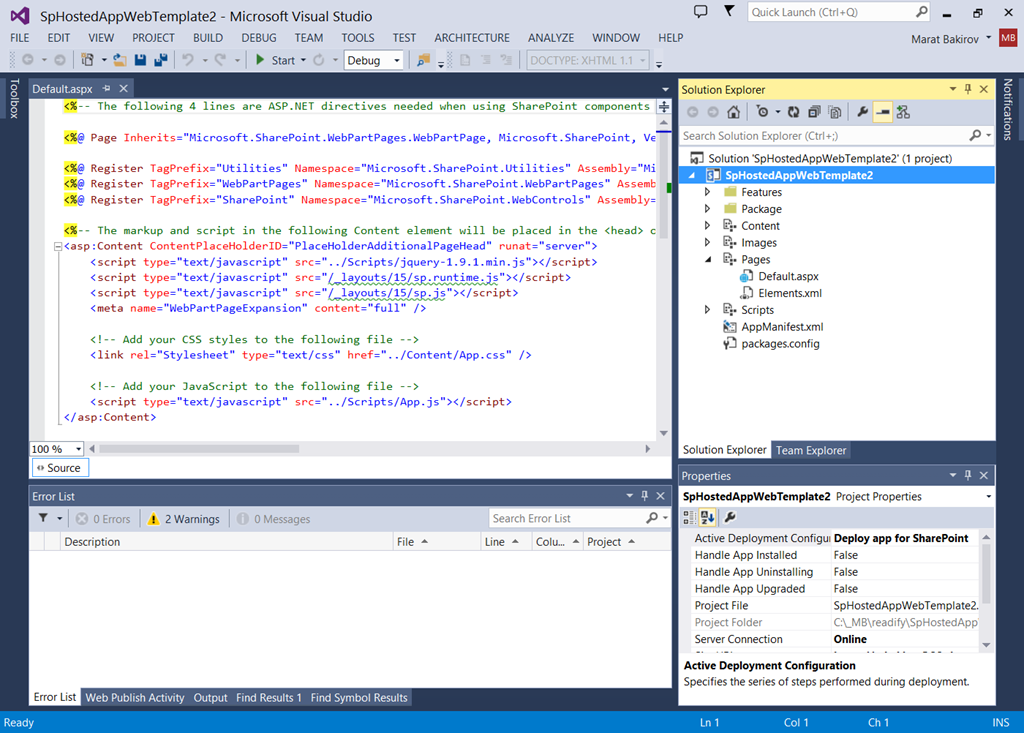
2. Right click the project in Solution Explorer and click > Add new item > Empty Element. Name it “MyCustomMaster”.
3. Go to “C:\Program Files\Common Files\microsoft shared\Web Server Extensions\15\TEMPLATE\SiteTemplates\App\Xml\ONET.XML” and copy the ONET.xml file and paste it in the MyCustomMaster folder that is created in the project as a result of the above step. Note: the original article tries to use sts template, but anyhow most of the links from it ain’t gonna work, so we are taking app template.
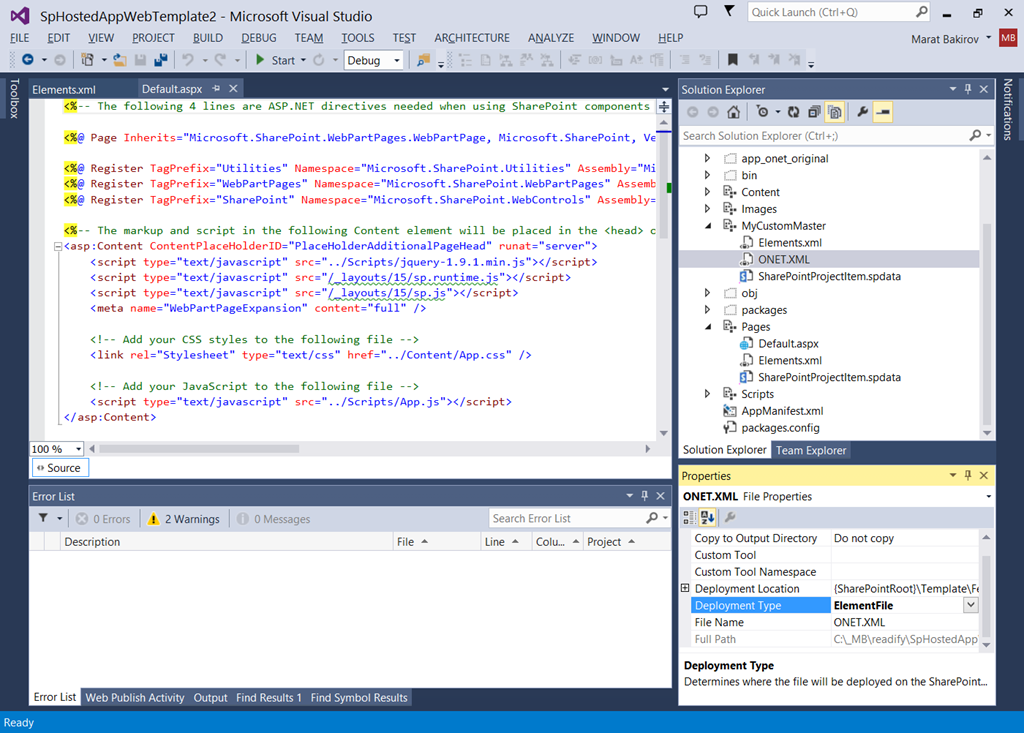
4. Include the onet.xml to the project, make sure the deploymentType is ‘ElementFile’ in onet.xml’s properties window.
<Configuration ID=“0“ Name=“MyCustomMaster“ MasterUrl=“_catalogs/masterpage/MyCustomMaster.master“>
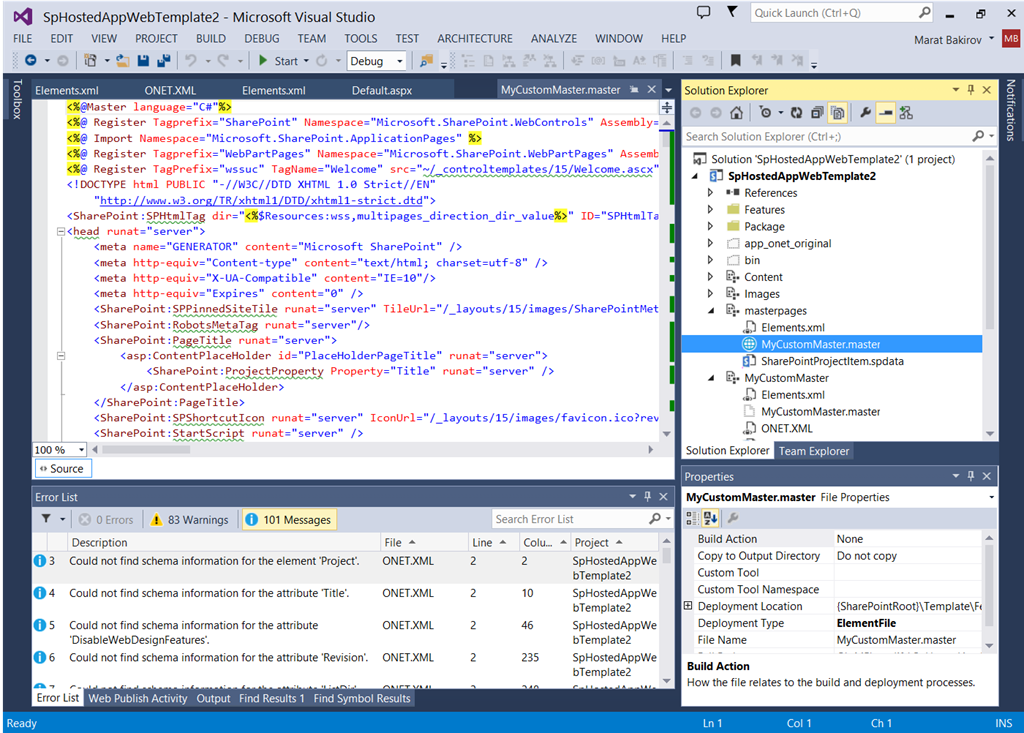
<Elements xmlns=“http://schemas.microsoft.com/sharepoint/“>
<Module Name=“masterpages” List=“116” Url=“_catalogs/masterpage“>
<File Path=“masterpages\MyCustomMaster.master” Url=“MyCustomMaster.master” ReplaceContent=“TRUE” Type=“GhostableInLibrary” Level=“Published“>
<Property Name=“UIVersion” Value=“15“></Property>
<Property Name=“MasterPageDescription” Value=“my master page” />
<Property Name=“ContentType” Value=“$Resources:cmscore,contenttype_masterpage_name;” />
</File>
</Module>
</Elements>
5.2 Change the onet.xml <Configuration ID=“0“ Name=“App“ MasterUrl=“_catalogs/masterpage/app.master“> to point to your master page <Configuration ID=“0“ Name=“MyCustomMaster“ MasterUrl=“_catalogs/masterpage/MyCustomMaster.master“>
Note: you actually could find and replace SiteLogoUrl in the onet.xml but for the purpose of this post we will change the master page.
5.3 Let us customize the master page. Find the line “ <SharePoint:SiteLogoImage CssClass=”ms-siteicon-img” name=”onetidHeadbnnr0″ id=”onetidHeadbnnr2″ LogoImageUrl=”/_layouts/15/images/siteIcon.png?rev=23″ runat=”server”/> Replace it with. <img class=”ms-siteicon-img” name=”onetidHeadbnnr0″ id=”onetidHeadbnnr2″ src =”https://marat365.com/wp-content/uploads/2011/10/d0bcd0b0d180d0b0d182-d0b1d0b0d0bad0b8d180d0bed0b2-face.jpg?w=233&h=300″/>
6. Open the Elements.xml of CustomWebTemplate and paste below xml: <WebTemplate Name=“MyCustomMaster“ Title=“A site with my custom master“ BaseTemplateID=“1“ BaseTemplateName=“APP“ BaseConfigurationID=“0“ DisplayCategory=“App sites“ />
Important note: I am not 100% sure but it is better to have Name attribute to be the same as element you have created earlier.
7. skipped.
8. Right click AppManifest.xml and click > View Code.
9. Before </Properties> copy below xml.
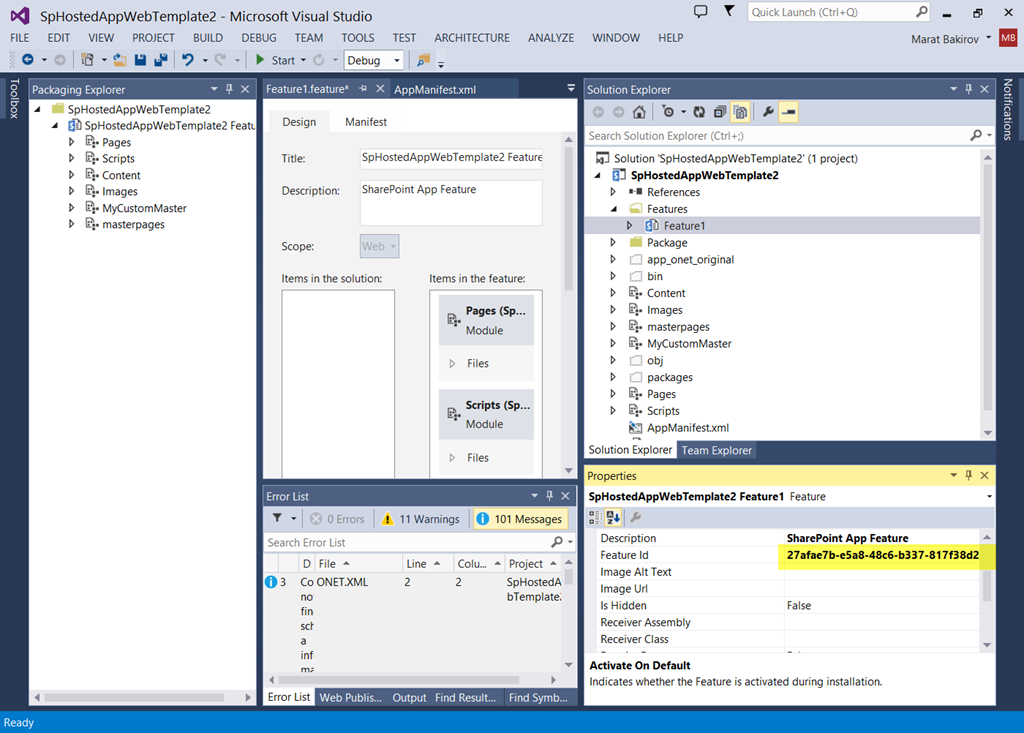
<WebTemplate Id=“{27afae7b-e5a8-48c6-b337-817f38d288ce}#MyCustomMaster“ />
10. this line is made by an id of your feature, that you can find by editing the feature, and the name of your elements file with onet.xml.
11. skipped.
12. Save all changes and deploy the app. Once deployed browse the app. You will notice that the App is now using team site template instead of App template. You will see familiar quick navigation and site settings.
Full solution is available at http://sdrv.ms/18w2zyL
Enjoy!




Leave a Reply