TLDR
The short version: don’t make one flow wait through the whole approval chain. Split it into a quick kickoff flow and a quick stage-advance flow that wakes up on a Dataverse trigger, and track state in a small list instead of in flow run memory. It’s a bit more engineering up front — and you do have to think about security, licensing, scalability and versioning — but it removes the 30-day ceiling entirely.
Full walkthrough and demo in the video below.
Video
note: this article is made from the video with partial use of AI.
If you’ve built any non-trivial approval process in Power Automate, you’ve probably run into this one: chain a few “start and wait for an approval” actions together — one approval feeding into the next — and sooner or later a flow run dies with a timeout. Power Automate caps a single flow run at 30 days, and a multi-stage approval chain, where each stage might sit with an approver for a week, can easily blow past that. In this video I walk through a pattern that gets around it.
The problem
Take a simple two-stage approval: something triggers the flow, it starts and waits for approval #1, runs some business logic , then waits for approval #2, then some other logic then completes.
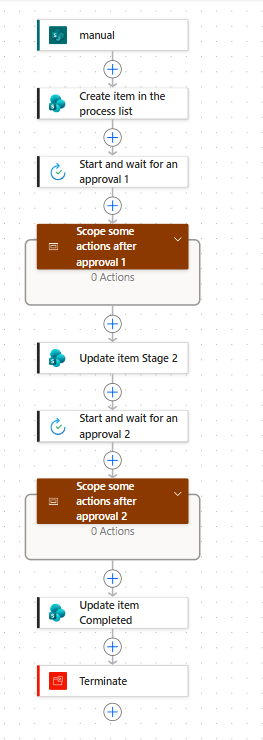
Every “start and wait” step is a point where the flow can sit for days or weeks, and if the whole chain adds up to more than 30 days, the run times out and you need to figure out how to restart the flow and from what point.
The fix: split the flow in two
Instead of one long flow that starts an approval and waits for it, split the process into two flows that never wait for anything:
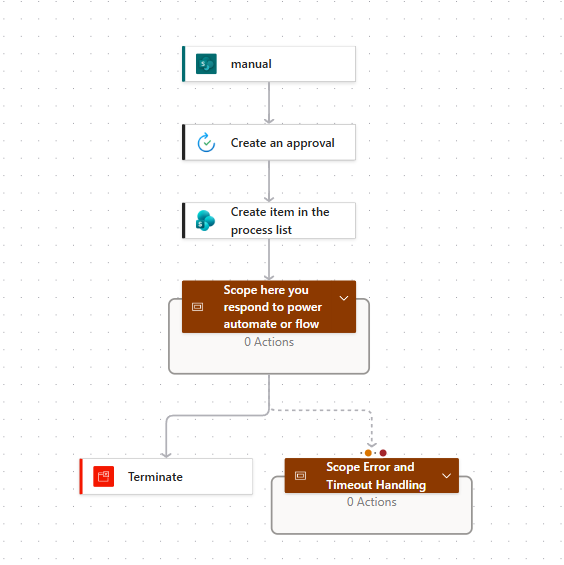
- Flow 1 – the trigger/kickoff flow. Interactive, runs once. It creates the item to be approved, starts the first approval (without waiting), writes a tracking record, and finishes immediately.
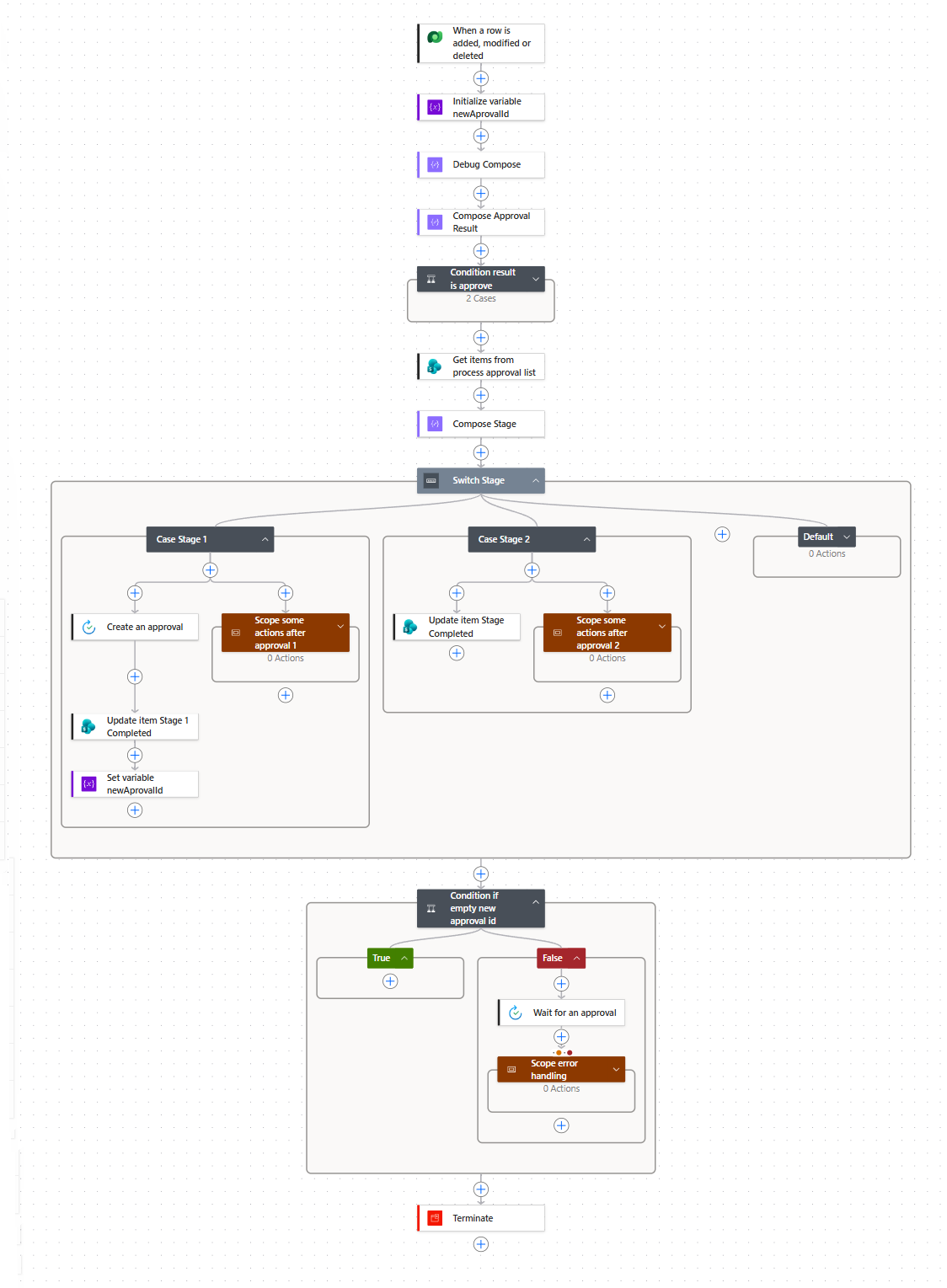
- Flow 2 – the stage-advance flow. Triggered off Dataverse whenever an approval completes. It looks up which process/stage the completed approval belongs to, then either kicks off the next approval and updates the stage, or — if this was the last stage — marks the process complete. This flow also runs briefly and doesn’t wait for anything.
Basically we are using a state machine here to go from one state to another.
Neither flow ever blocks on a long-running action, so neither can time out. The chain can be two stages or ten, and it can even branch — approve moves the process forward a stage, reject sends it back down the chain to an earlier approver.
The Dataverse piece
The trigger for flow 2 comes from Dataverse. There’s an Approvals table in the default solution, but it doesn’t give you a stable way to filter down to just the approvals belonging to your process. The more useful table turns out to be Flow approvals:.
Flow approvals actually has the flow id, but the problem is it is not always updated once the approval happens.
So we have to use the approvals table and carefully choose the trigger condition.
Because a Dataverse trigger like this fires on every approval in the environment, you need a trigger condition to scope it down to your own process — as an example you can filter by the item link (stored as an environment variable, so it’s portable between environments) and on the approval being complete.
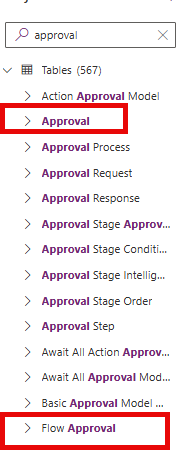
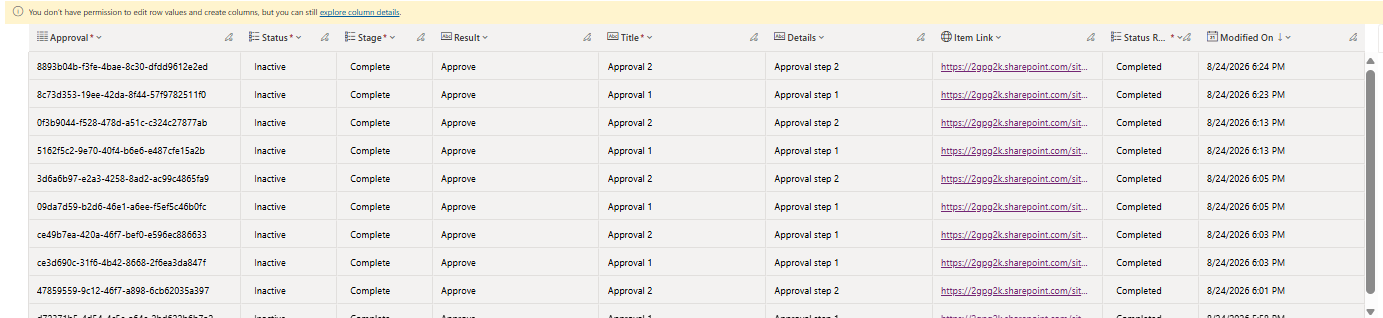
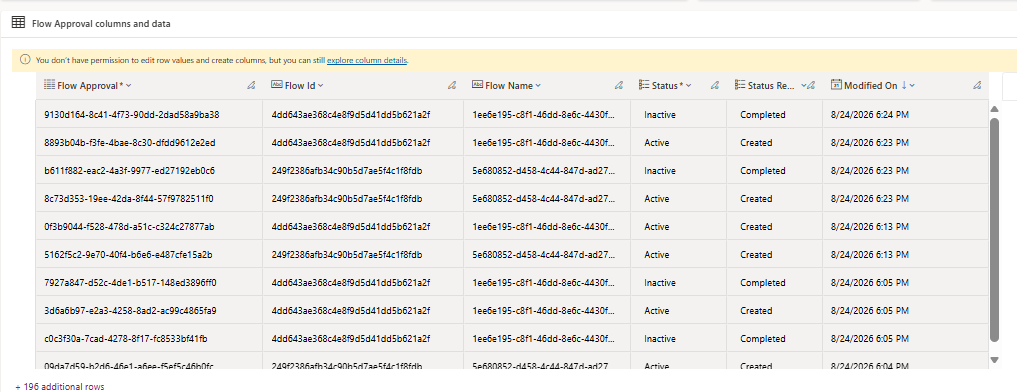
As you see, the flow approval is more precise and we can find our flow by Flow Name (actually it has id here), but I found our that this has all combinations of the flow and approval, and it takes a lot of time to get to completed stage…
So I chose the first table for this particular sample.
The tracking list
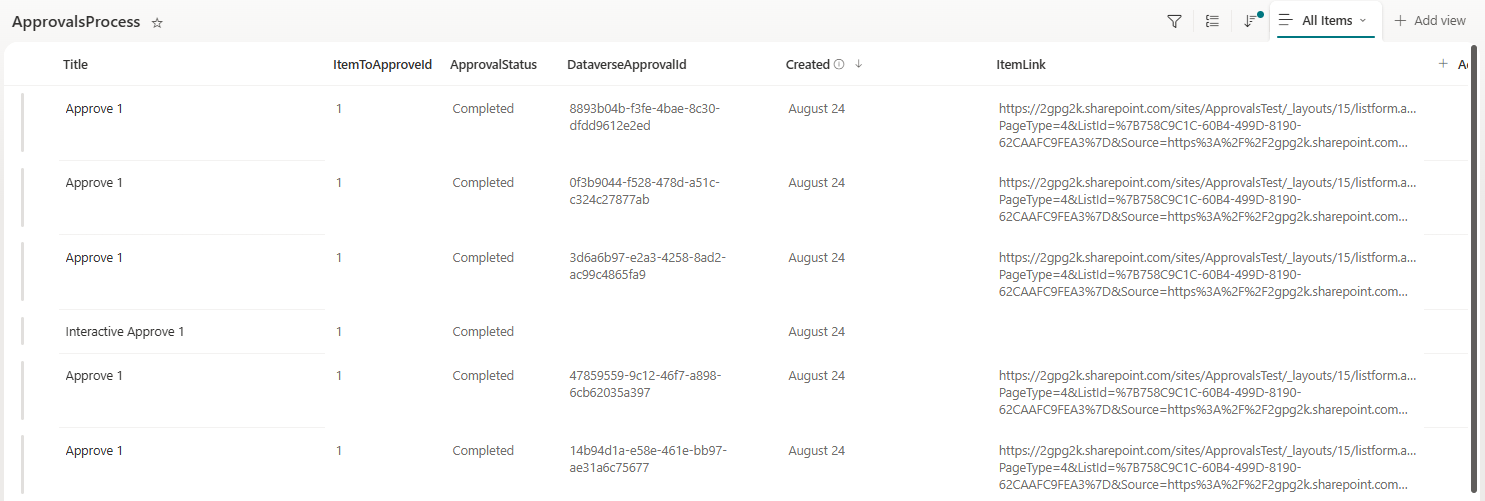
All of this rests on a small “process tracking” list/table that both flows read and write:
- A reference back to the item being approved
- The current approval status / stage
- The Dataverse approval ID for the approval currently in flight
- A process version, so you can tell which version of the flow logic a given record was started under
Flow 1 creates the record and starts stage one. Flow 2 reads it on every trigger to work out where the process is and what to do next.
Things to think about before you build this
- Security. Approvals usually exist precisely because the requesting user isn’t allowed to do the thing themselves. Run the trigger flow’s connections under a service account rather than the interactive user’s connection, so it can do the follow-up actions the approver — not the requester — is authorized for.
- Licensing. A Dataverse trigger needs a premium Power Automate license. The good news is only the service account running the trigger flow needs it — not every user who kicks off the process.
- Scalability. Dataverse API calls have limits. If volume is high, look at a higher-capacity plan, or split high-volume processes across separate service accounts.
- Versioning. Because the process now spans two flows and a tracking record, a process kicked off under flow logic v1 can still be “in flight” after you’ve deployed v2. Carry a process version on the tracking record so flow 2 knows which logic to apply, and expect to occasionally run two versions of the stage-advance flow side by side until the old records finish out.
Let me know in the comments if you’ve solved this a different way — always keen to compare notes.


Leave a Reply